Minesweeper Rules: How to Play
Anna | September 26, 2026
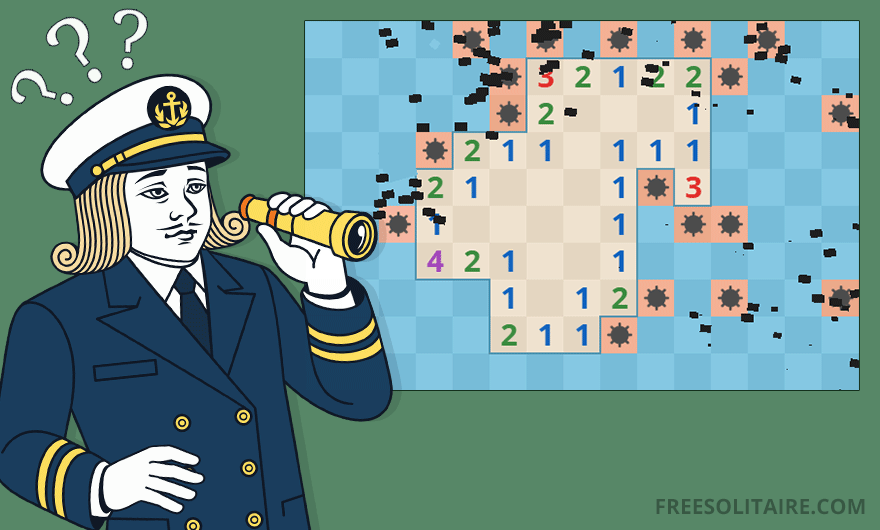
So you opened Minesweeper, clicked a couple of squares and the whole screen exploded? Been there. The good news is that the game only looks like guesswork. Once you know what the numbers are telling you, every square can be worked out with a bit of logic. In this guide I'll take you from your very first click to clearing a full board, using our own game as the example. No previous experience needed.
What You See on the Board
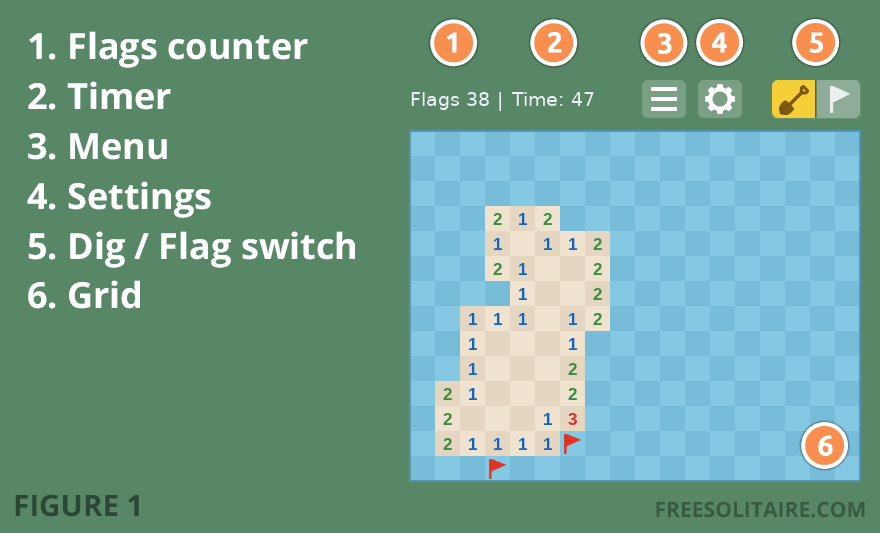
Figure 1 shows a game in progress with everything labeled. Here is what each part does:
- 1. Flags counter: Shows how many flags you still have. It starts at the number of mines on the board and counts down every time you plant one.
- 2. Timer: Starts ticking on your first click and stops when the game ends. Your best times are saved per level.
- 3. Menu: Start a new game on any level, open your statistics or jump to our other games.
- 4. Settings: The gear button holds the sound and background options.
- 5. Dig/Flag switch: The two buttons with a shovel and a flag. Shovel mode uncovers squares, flag mode marks them. More on that below.
- 6. The grid: A field of covered squares. A fixed number of mines is hidden underneath, and your job is to uncover every square that is not a mine.
Pick a Level
Open the menu and you'll find three board sizes. On a desktop the game starts you on Medium; on a phone it starts on Easy, which fits a small screen much better.
- Easy: 10 × 8 squares (10 mines). Ideal for learning the patterns without much pressure.
- Medium: 18 × 14 squares (40 mines). The sweet spot for most players.
- Hard: 24 × 20 squares (99 mines). Long games, real concentration, big satisfaction when you clear it.
On mobile the grid reshapes itself to fit your screen, so it can be taller and narrower than the desktop version. The number of mines is adjusted to the smaller board, which keeps the difficulty about the same.
Your First Click
Click anywhere. Really, anywhere. In our version the first click can never hit a mine and always opens up a bit of space around it, so you get a proper starting point instead of a lucky dip. Behind the scenes the game also lays out the mines so the whole board can be solved by reasoning alone, without a coin flip at the end. Every board you play here is fully solvable.
A small tip for later: the middle of the board tends to open up bigger areas than the corners, simply because a square in the middle has eight neighbors and a corner square only three.
What the Numbers Mean
This is the heart of the game. Every uncovered square shows a number, or nothing at all. That number tells you how many mines are touching that square, counting all eight neighbors: left, right, above, below and the four diagonals. A blank square means zero mines around it, which is why the game automatically opens all of its neighbors for you, and their neighbors too, until it reaches squares with numbers.
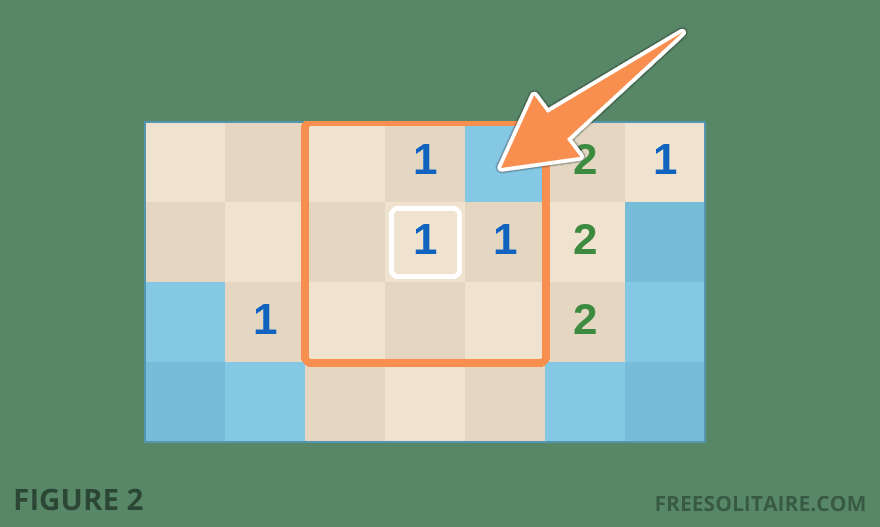
Look at the 1 highlighted in Figure 2. Eight squares surround it, marked by the orange frame. Seven of them are already uncovered, so the one remaining covered square, the one the arrow points at, must be the mine. That's the entire trick of Minesweeper: a number, its covered neighbors and a little counting. Do that a few hundred times and you've cleared the board.
The colors help you scan the board quickly. A 1 is blue, a 2 is green, a 3 is red and higher numbers get their own shades as well. You'll rarely see a 7 or an 8. When you do, take a screenshot, that square is surrounded on almost every side.
Planting Flags
When you're sure a square hides a mine, put a flag on it. Flagged squares can't be uncovered by accident, and the flag counter goes down by one so you always know how many mines are still unmarked. There are four ways to plant a flag in our game:
- Right-click the square (desktop).
- Ctrl + left-click, handy on a laptop trackpad without a right button.
- Press and hold the square for about half a second (phone or tablet).
- Switch to flag mode with the flag button in the top right corner. Every tap or click now plants a flag instead of digging. Tap the shovel to switch back.
Do the same thing again on a flagged square to remove the flag. One rule to remember: you can't place more flags than there are mines. If the counter reads 0 and the game refuses to plant another one, one of your existing flags is in the wrong place.
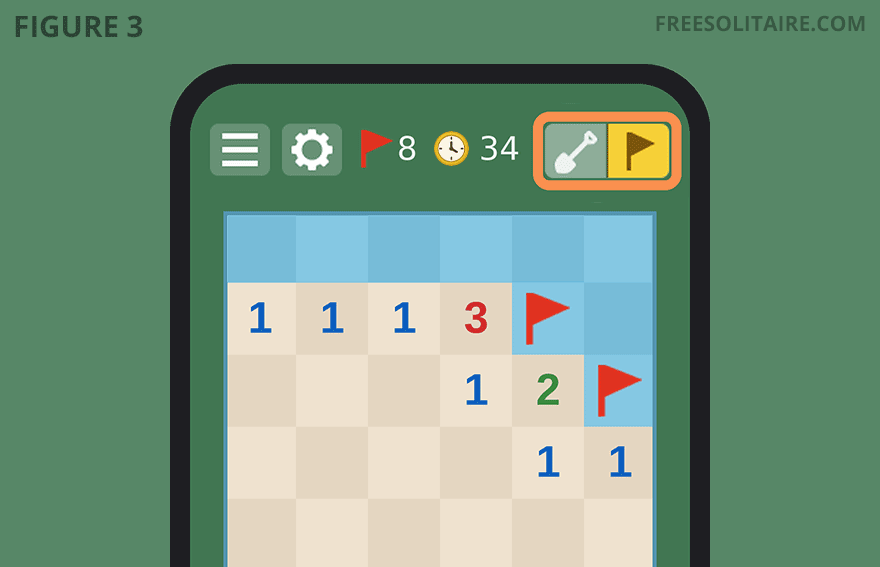
Figure 3 shows flag mode on a phone. If you're playing on a touchscreen, this switch is usually quicker than the long press, especially in the endgame when you're marking several mines in a row.
Faster Play: Clicking on Numbers
Here's a move that separates beginners from regulars. When a number already has the right amount of flags around it, you can uncover all its other neighbors in one go. Press the middle mouse button on the number, or hold the left and right buttons down together. The squares that are about to open light up for a moment, so you can see exactly what you're doing. Players call this "chording," and on Medium and Hard it saves a lot of clicking. Just be careful: if one of your flags was wrong, chording will happily uncover the mine next to it.
Winning and Losing
You win the moment the last safe square is uncovered. You don't need to flag every mine; the flags are there for you, not for the game. Your time is shown on the "All Mines Cleared" screen and, if it's your fastest run on that level, it goes straight into your statistics.
Uncover a mine and it's game over. Every mine on the board is revealed, and any flag you placed on a safe square gets a red cross so you can see where your reasoning went wrong. Then hit "Try Again" for a fresh board on the same level. There's no undo button in Minesweeper, and that's on purpose: the tension of a click you can't take back is what makes the game.
Keeping Score
Minesweeper is all about racing the clock and beating your own record, so the game keeps track of your results separately for Easy, Medium and Hard. Open Statistics from the menu and you'll see games played, won and lost, your win percentage, your best time and your average time. Everything is stored in your own browser. Two things to know: leaving a game halfway counts as a game played, and the Reset Stats button wipes the numbers for that level for good.
Handy Shortcuts
Press R or N on your keyboard to start a new game on the current level without opening the menu. That's the one shortcut you'll use constantly, especially after an early boom.
Ready to Sweep?
That's all there is to it: uncover squares, read the numbers, flag the mines, repeat. Start on Easy, get comfortable with the counting and move up when boards start to feel small. Ready to win more often? Our Minesweeper tips and strategies show you the patterns and habits that turn a decent player into a good one. Got a question I haven't answered here? Have a look at our Minesweeper FAQ. And if you're curious where this little game came from, the history of Minesweeper is a surprisingly good story.